Black Friday

Belongs to Bundles, Get Ready!

Days
Hours
Min

%50 OFF

on Enterprise Plan

How to Merge Products in Shopify

How to Merge Products in Shopify (Combine Into Variants Step-by-Step)

On this page
On this page

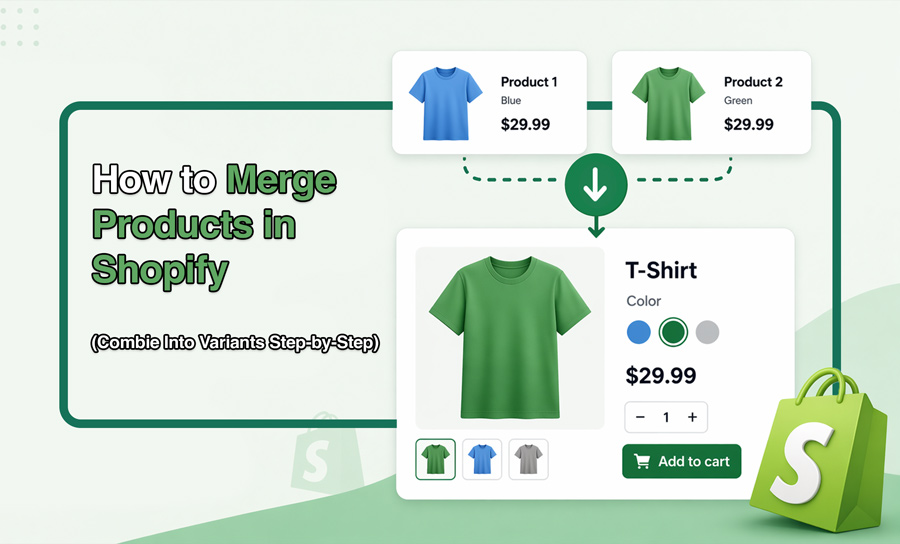
The process of “combining” or “merging” products in your Shopify store usually means turning separate product listings into one item with variants.

In Shopify, a product is the main listing, and variants are the ways it rolls out. Knowing how to shopify combine products helps organize your store, simplify browsing, and create a cleaner shopping experience for customers. This is a comprehensive guide on how to combine two products on Shopify.

Why merging Shopify products is important

Combining two products into one shopify pack can be crucial to your store because it makes it easier to shop for your customers, and easier to manage for you!

Instead of showing several separate listings for the same item, you can group them under one product with variants like size, color, or style (In a bit I’ll tell you what this means). This creates a more well put catalog and helps customers find what they want faster. Shopify combine process:

  • Reduces duplicate product pages
  • Makes your collection pages look cleaner
  • Improves the customer experience
  • Keeps related options in one place
  • Helps customers compare choices more easily
  • Can strengthen product page engagement and conversion
  • Makes inventory and product management more organized.

What are Shopify product Variants

What are Shopify product Variants

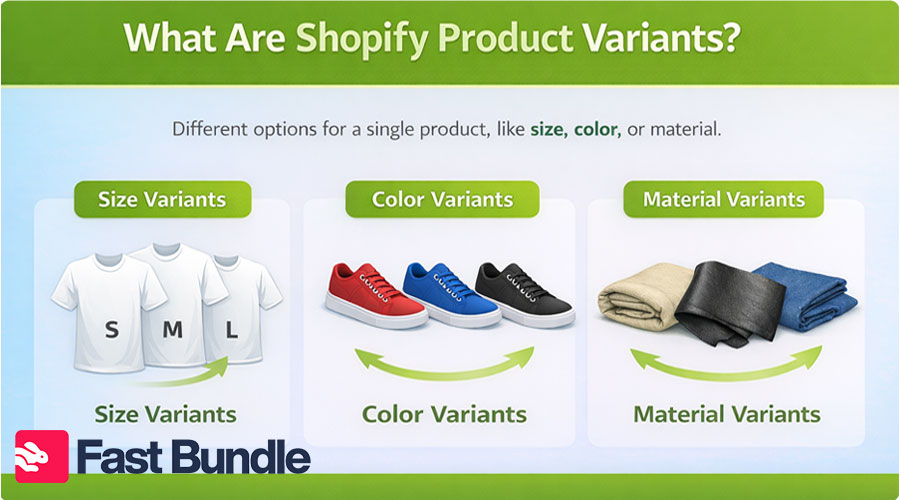
Shopify product variants are the different versions of the same product that share one product page but have different option values.

Each of your items can have options like size, color, material, or style, and the unique combination of these becomes a variant.

For example, a T-shirt may have

  • Size: Small, Medium, Large
  • Color: Black, White, Blue.

“Small / Black” and “Large / Blue” are separate variants here. Each can have its own price, SKU, barcode, inventory quantity and image.

Watch over your variants and the your store organized, and help customers find (and buy) what they want without the navigation hassle.

original-8633c6509244a0afee73ec4f528c7f62

Product Bundles increase AOV by 10 ot 30%!

Turn Small Orders into BIG Ones!

How to Merge Products in Shopify (2 Methods)

There are two main ways for Shopify merge products into variants. If you’re dealing a small number of items, you can do this manually inside Shopify.

For larger groups of products, using a CSV file is usually faster and more accurate. Both are commonly used, so lets read about them:

Method 1: Merge Products Manually in Shopify
Merge Products Manually in Shopify

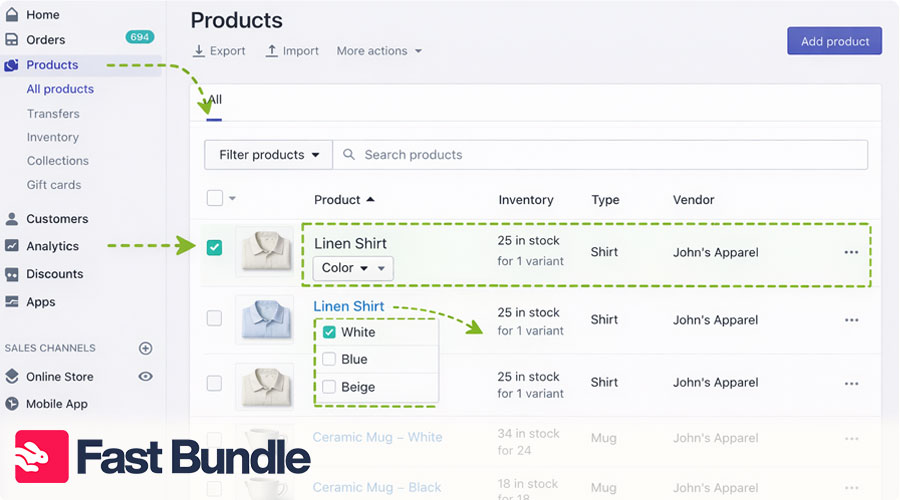
Imagine you have these variants inside your shop and want to merge into “Linen Shirt” with Color as the variant option.

  • Linen Shirt – White
  • Linen Shirt – Blue
  • Linen Shirt – Beige

Here’s the basic process:

  • Go to your Shopify store admin and log in with your account.

  • From the left-hand menu, click Products. This is where you can see all the products currently in your store.

  • Choose one product to keep as the main product
  • Rename it with a broader product title (like Linen Shirt)
  • Add an option such as Color, Size, or Material
  • Create the variant values.
  • Copy over each variant’s image, SKU, price, and inventory.
  • Remove or archive the old duplicate product pages.

Method 2: Merge numerous products with CSV
Merge numerous products with CSV

As a Shopify seller, you’ve probably heard things about CSV and its many uses.

A CSV file stands for “Comma-Separated Values”. It is a simple spreadsheet file that organizes data in rows and columns. In Shopify, you use these files to export product data or edit in bulk, it works wonders in combining two products into one Shopify product. Here’s how to use it:

  • Log into your Shopify account and download the products you want to merge as a CSV file.
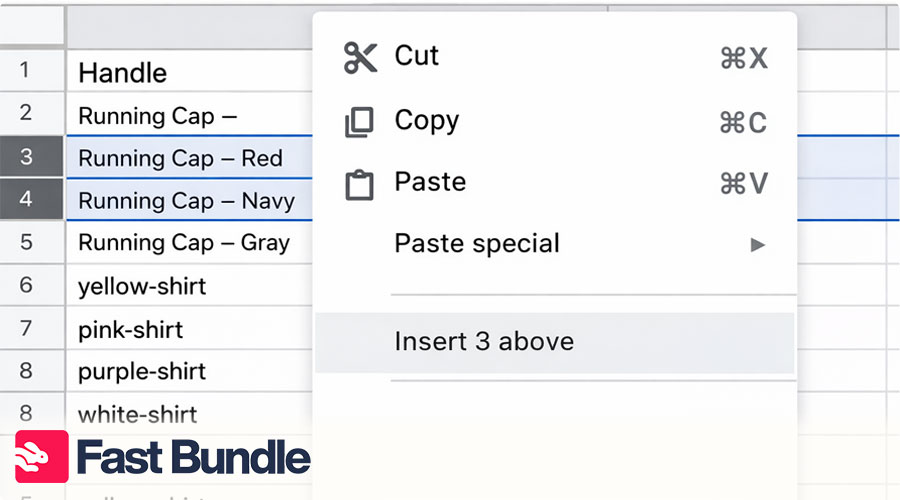
  • Open the file in Excel, Google Sheets, or Numbers, and then update the rows so Shopify reads them as one product with multiple variants. 
  • For example if you sell caps, it could be a combination like:

Running Cap – Red

Running Cap – Navy

Running Cap – Gray

  • Save the edited spreadsheet again in CSV format.

  • Go back to products in Shopify and import the updated CSV file.

  • Check the new product page to make sure the variants, images, prices, and inventory are correct. 

Common Issues When Combining Products on Shopify

Combining products on Shopify can boost sales and improve the shopping experience, but it may come with a few challenges. Here are the issues and fixes:

Problem 1: Discount Not Applying to combined Products

  • Fix: Check if the products are eligible for the discount by reviewing the conditions in your Shopify admin. Ensure the discount is set to apply to the correct product combinations (e.g., specific products, collections, or price ranges).
  • Fix: If you’re using a third-party app, verify that it is properly integrated with your Shopify store and supports the discount type you want to use, such as percentage discounts or “Buy X, Get Y” offers.

Problem 2: Variants Not Showing Up Together

  • Fix: Ensure you’ve correctly set up product variants on the Shopify product page. All variants (e.g., sizes, colors) should be part of the same product listing to appear together.
  • Fix: Double-check that inventory is available for each variant and that there are no errors in the variant configuration.

Problem 3: Combinations Not Appearing in Cart

  • Fix: For third-party bundling apps, ensure their settings are configured correctly to display the bundle in the cart. Verify the products included in the bundle are accurately defined in the app.
  • Fix: Confirm that your Shopify theme is compatible with the app. If issues persist, update or reinstall the app and contact the app developer for support.

Ready to level up your Shopify store?

‌Start Combining Products Now!

Final Thoughts

While there are many options for a seller to increase their sales and scale the business, “merge products shopify” seems like a good place to start, both for newbies and experienced sellers. Now that you know all about product combo, you can get hands-on and think about what products go best together as a combo!

FAQ

Combine products using Shopify’s built-in tools like product variants for options (e.g., sizes or colors), manual bundles for grouping items into one listing, or third-party apps like Bold Bundles for advanced bundling and discount features. These methods make it easy to create appealing product combinations.

Create a bundle by manually listing multiple items together or using an app like Fast bundle. Add a discount code or an automatic discount for extra appeal. This encourages customers to purchase complementary items in a single transaction while boosting sales.

Yes, Shopify’s automatic discounts and bundling apps allow you to combine products seamlessly. Set conditions (e.g., buy two items, get a discount) to apply offers automatically at checkout, simplifying the process for store owners and customers.

This could be due to app conflicts, theme compatibility issues, or incorrect discount settings. Ensure the app is configured correctly, update your theme if needed, and double-check that the conditions for discounts or bundles are accurate.

Rozhan is a Content Writer at Fast Bundle, where she produces strategic, value-packed content to help ecommerce businesses — especially Shopify stores — grow their revenue through smart product bundling. Her work focuses on simplifying bundling techniques, enhancing customer experience, and sharing data-backed insights that drive conversions. With a passion for clear communication and a background in digital marketing, Rozhan turns complex ecommerce ideas into accessible, results-driven articles.